Simple Draw Pro Create Drawing
Goal: Create a new drawing in Simple Draw Pro. Name it adipiscing_fair_jelly_final.png. Save it in the Pictures folder within the sdk_gphone_x86_64 storage area.
Goal: Create a new drawing in Simple Draw Pro. Name it adipiscing_fair_jelly_final.png. Save it in the Pictures folder within the sdk_gphone_x86_64 storage area.
user: None
The current subgoal explicitly states to "Use open_app to launch “Simple Draw Pro”". This translates directly to the `open_app` action with the text parameter set to "Simple Draw Pro".
open_app(text="Simple Draw Pro")
Opening the "Simple Draw Pro" application.
Opening the "Simple Draw Pro" application.
The subgoal requires making a small stroke on the canvas. This can be achieved by performing a `swipe` action on the blank canvas area. I will choose two coordinates within the large white area of the screen to simulate a small stroke.
swipe(coordinate=[500, 1000]coordinate2=[550, 1050])
Performing a small swipe on the canvas to create a stroke.
Performing a small swipe on the canvas to create a stroke.
The current subgoal is to "Tap the Save button in Simple Draw Pro." I need to find the "Save" button in the provided UI elements and perform a click action on it. Element 3 is a Button with the text "Save".
click(index=3)
Tapping the "Save" button.
Tapping the "Save" button.
The current subgoal is "Tap OK to save." I need to identify the "OK" button in the provided UI elements and perform a click action on it. Element 11 is a button labeled "OK".
click(index=11)
Tapping the "OK" button to save the drawing.
Tapping the "OK" button to save the drawing.
The current subgoal explicitly states to "Tap the “Show roots” (hamburger) button". I need to find the UI element that corresponds to "Show roots" and perform a click action on it. Based on the provided UI elements, element 11 is an ImageButton with the text "Show roots".
click(index=11)
Tapping the "Show roots" button to open the navigation pane.
Tapping the "Show roots" button to open the navigation pane.
The current subgoal is to tap "sdk_gphone64_x86_64". I need to find the index of this element in the provided UI elements. Element 11 has the text "sdk_gphone64_x86_64". Therefore, I will perform a click action on index 11.
click(index=11)
Tapping "sdk_gphone64_x86_64" to switch to internal storage.
Tapping "sdk_gphone64_x86_64" to switch to internal storage.
The subgoal is to "Tap the “Pictures” folder to open it." I need to find the UI element that says "Pictures" and click on it. Element 35, a TextView, has the text "Pictures".
click(index=35)
Tapping the "Pictures" folder to open it.
Tapping the "Pictures" folder to open it.
The current subgoal is to "Tap the SAVE button". I need to find the "SAVE" button in the provided UI elements and perform a click action on it. Element 22 is a Button with the text "SAVE".
click(index=22)
Tapping the "SAVE" button.
Tapping the "SAVE" button.
The current subgoal is to "Open the Files app." This directly translates to using the `open_app` action with the text "Files".
open_app(text="Files")
Opening the Files app.
Opening the Files app.
The current subgoal is to "Tap the “Show roots” (hamburger) button to open the navigation pane." I need to find the clickable element with the text "Show roots" and perform a click action on it. Element 16, an ImageButton, has the text "Show roots".
click(index=16)
Tapping the "Show roots" button to open the navigation pane.
Tapping the "Show roots" button to open the navigation pane.
The current subgoal is to "Tap “sdk_gphone64_x86_64” in the left drawer." I need to find the element with the text "sdk_gphone64_x86_64" and perform a click action on it. Based on the provided UI elements, element 21 has the text "sdk_gphone64_x86_64".
click(index=21)
Tapping "sdk_gphone64_x86_64" in the left drawer.
Tapping "sdk_gphone64_x86_64" in the left drawer.
The current subgoal is to "Tap the Pictures folder." I need to find the element with the text "Pictures" and click it. Based on the provided UI elements, element 40, "TextView: "android:id/title", "Pictures" - (675, 1312, 810, 1363)", matches this description.
click(index=40)
Tapping the "Pictures" folder.
Tapping the "Pictures" folder.
Created a new drawing in Simple Draw Pro and saved it as "adipiscing_fair_jelly_final.png" in the Pictures folder of the device’s internal storage (sdk_gphone64_x86_64).
complete_goal(message="Created a new drawing in Simple Draw Pro and saved it as "adipiscing_fair_jelly_final.png" in the Pictures folder of the device’s internal storage (sdk_gphone64_x86_64).")
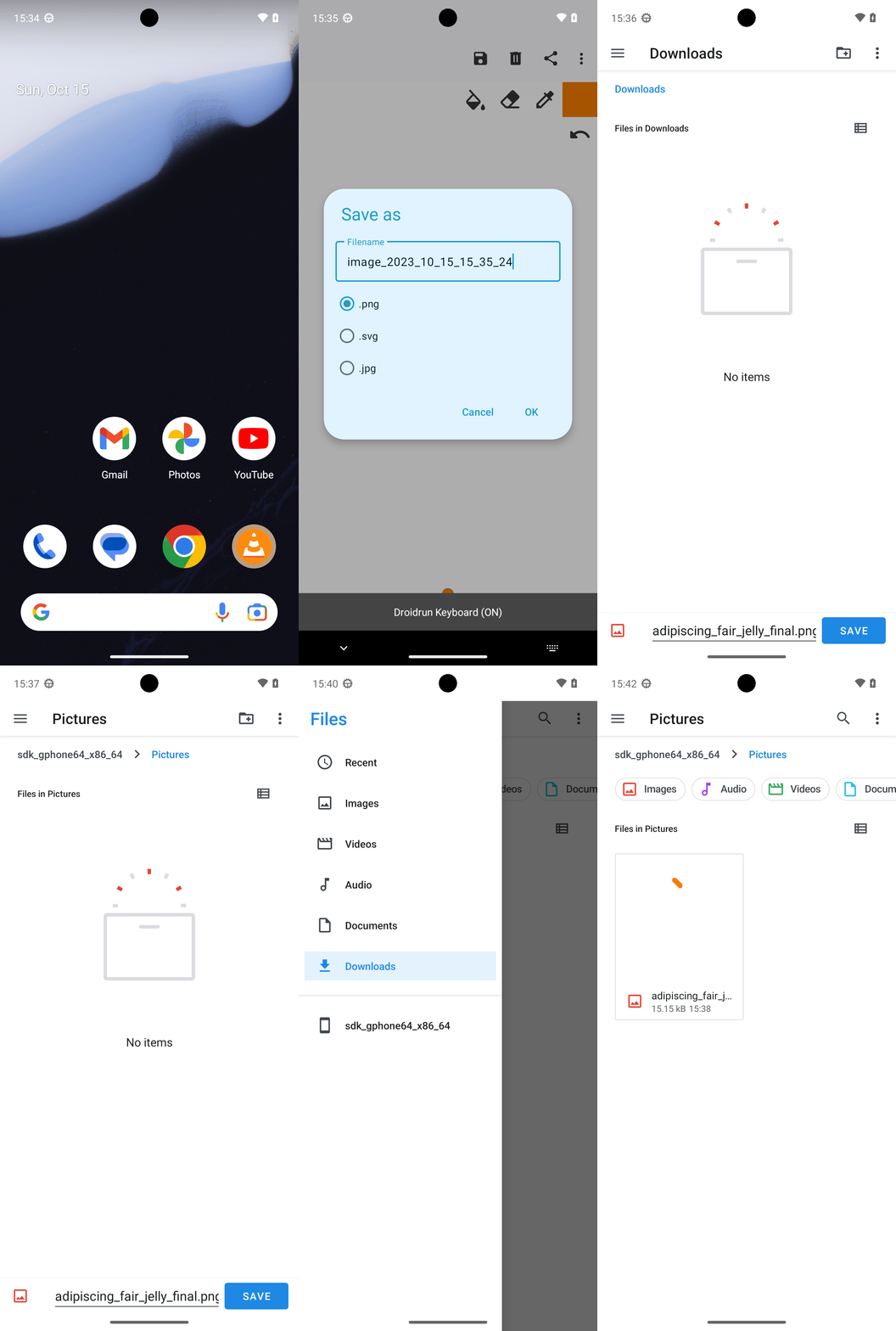
Goal: Create a new drawing in Simple Draw Pro. Name it adipiscing_fair_jelly_final.png. Save it in the Pictures folder within the sdk_gphone_x86_64 storage area.
user: None
The current subgoal explicitly states to "Use open_app to launch “Simple Draw Pro”". This translates directly to the `open_app` action with the text parameter set to "Simple Draw Pro".
open_app(text="Simple Draw Pro")
Opening the "Simple Draw Pro" application.
Opening the "Simple Draw Pro" application.
The subgoal requires making a small stroke on the canvas. This can be achieved by performing a `swipe` action on the blank canvas area. I will choose two coordinates within the large white area of the screen to simulate a small stroke.
swipe(coordinate=[500, 1000]coordinate2=[550, 1050])
Performing a small swipe on the canvas to create a stroke.
Performing a small swipe on the canvas to create a stroke.
The current subgoal is to "Tap the Save button in Simple Draw Pro." I need to find the "Save" button in the provided UI elements and perform a click action on it. Element 3 is a Button with the text "Save".
click(index=3)
Tapping the "Save" button.
Tapping the "Save" button.
The current subgoal is "Tap OK to save." I need to identify the "OK" button in the provided UI elements and perform a click action on it. Element 11 is a button labeled "OK".
click(index=11)
Tapping the "OK" button to save the drawing.
Tapping the "OK" button to save the drawing.
The current subgoal explicitly states to "Tap the “Show roots” (hamburger) button". I need to find the UI element that corresponds to "Show roots" and perform a click action on it. Based on the provided UI elements, element 11 is an ImageButton with the text "Show roots".
click(index=11)
Tapping the "Show roots" button to open the navigation pane.
Tapping the "Show roots" button to open the navigation pane.
The current subgoal is to tap "sdk_gphone64_x86_64". I need to find the index of this element in the provided UI elements. Element 11 has the text "sdk_gphone64_x86_64". Therefore, I will perform a click action on index 11.
click(index=11)
Tapping "sdk_gphone64_x86_64" to switch to internal storage.
Tapping "sdk_gphone64_x86_64" to switch to internal storage.
The subgoal is to "Tap the “Pictures” folder to open it." I need to find the UI element that says "Pictures" and click on it. Element 35, a TextView, has the text "Pictures".
click(index=35)
Tapping the "Pictures" folder to open it.
Tapping the "Pictures" folder to open it.
The current subgoal is to "Tap the SAVE button". I need to find the "SAVE" button in the provided UI elements and perform a click action on it. Element 22 is a Button with the text "SAVE".
click(index=22)
Tapping the "SAVE" button.
Tapping the "SAVE" button.
The current subgoal is to "Open the Files app." This directly translates to using the `open_app` action with the text "Files".
open_app(text="Files")
Opening the Files app.
Opening the Files app.
The current subgoal is to "Tap the “Show roots” (hamburger) button to open the navigation pane." I need to find the clickable element with the text "Show roots" and perform a click action on it. Element 16, an ImageButton, has the text "Show roots".
click(index=16)
Tapping the "Show roots" button to open the navigation pane.
Tapping the "Show roots" button to open the navigation pane.
The current subgoal is to "Tap “sdk_gphone64_x86_64” in the left drawer." I need to find the element with the text "sdk_gphone64_x86_64" and perform a click action on it. Based on the provided UI elements, element 21 has the text "sdk_gphone64_x86_64".
click(index=21)
Tapping "sdk_gphone64_x86_64" in the left drawer.
Tapping "sdk_gphone64_x86_64" in the left drawer.
The current subgoal is to "Tap the Pictures folder." I need to find the element with the text "Pictures" and click it. Based on the provided UI elements, element 40, "TextView: "android:id/title", "Pictures" - (675, 1312, 810, 1363)", matches this description.
click(index=40)
Tapping the "Pictures" folder.
Tapping the "Pictures" folder.
Created a new drawing in Simple Draw Pro and saved it as "adipiscing_fair_jelly_final.png" in the Pictures folder of the device’s internal storage (sdk_gphone64_x86_64).
complete_goal(message="Created a new drawing in Simple Draw Pro and saved it as "adipiscing_fair_jelly_final.png" in the Pictures folder of the device’s internal storage (sdk_gphone64_x86_64).")