Simple Calendar Delete One Event
Goal: In Simple Calendar Pro, delete the calendar event on 2023-10-24 at 23h with the title 'Workshop on Project X'
Goal: In Simple Calendar Pro, delete the calendar event on 2023-10-24 at 23h with the title 'Workshop on Project X'
user: None
The current subgoal explicitly states to "Open the app 'Simple Calendar Pro' using the open_app action." This requires the `open_app` action with the `text` parameter set to "Simple Calendar Pro".
open_app(text="Simple Calendar Pro")
Opening the app "Simple Calendar Pro".
Opening the app "Simple Calendar Pro".
The current subgoal is to "Tap the Search field at the top and type: Workshop on Project X." 1. **Atomic Action:** The action required is `type`. 2. **Target/Location:** The target is the "Search field at the top". Based on the provided UI elements, element 5 is an `EditText` with the text "Search" and is located at the top. 3. **Parameters:** The `index` for the `type` action will be 5, and the `text` to type will be "Workshop on Project X".
type(text="Workshop on Project X"index=5)
Typing "Workshop on Project X" into the search field (element 5).
Typing "Workshop on Project X" into the search field (element 5).
The current subgoal requires tapping the search result item "Workshop on Project X". I need to find the UI element corresponding to this text and perform a click action on it. Based on the provided UI elements, element 62 has the text "Workshop on Project X" and is a TextView within an event item holder, which is a search result.
click(index=62)
Tapping the search result item "Workshop on Project X" to open its details.
Tapping the search result item "Workshop on Project X" to open its details.
The current subgoal is to "Tap the Delete button at the top." I need to find the "Delete" button in the provided UI elements and perform a click action on it. Element 6 is a Button with the text "Delete".
click(index=6)
Tapping the Delete button.
Tapping the Delete button.
The current subgoal is to "Tap “Yes” on the confirmation dialog to delete the event." I need to find the "Yes" button in the provided UI elements and perform a click action on it. Based on the provided UI elements, the "Yes" button is element 5.
click(index=5)
Tapping the "Yes" button on the confirmation dialog.
Tapping the "Yes" button on the confirmation dialog.
The current subgoal is to "Tap the “Workshop on Project X” result to open its details and verify existence." The UI shows "Workshop on Project X" as a clickable element at index 62. I need to perform a click action on this element.
click(index=62)
Tapping the "Workshop on Project X" search result to open its details.
Tapping the "Workshop on Project X" search result to open its details.
The current subgoal is to "Tap the event item holder (not just the title) in the search results to open 'Workshop on Project X'". I need to find the element corresponding to the "event item holder". Element 61 is "ViewGroup: com.simplemobiletools.calendar.pro:id/event_item_holder, event_item_holder - (42, 479, 1038, 656)". This is the correct element to tap.
click(index=61)
Tapping the event item holder for "Workshop on Project X".
Tapping the event item holder for "Workshop on Project X".
The current subgoal requires me to tap the search field, clear its text, and then retype "Workshop on Project X" to refresh the results. 1. **Tap the search field:** The search field is identified as element 5, an EditText with the text "Workshop on Project X". I will use `click(5)`. 2. **Clear the text:** There is no explicit "clear text" atomic action. However, when an input field is focused and new text is typed, it typically overwrites the existing text. 3. **Retype: Workshop on Project X:** I will use `type("Workshop on Project X", 5)` to re-enter the search term. This should also trigger a refresh of the search results.type(text="Workshop on Project X"index=5)
Typing "Workshop on Project X" into the search field (element 5) to refresh the search results. This action implicitly handles tapping the search field and overwriting its current content.
Typing "Workshop on Project X" into the search field (element 5) to refresh the search results. This action implicitly handles tapping the search field and overwriting its current content.
The current subgoal is to "Tap the search icon (top left of the search field) to trigger/refresh the results list." Based on the provided UI elements, element 4 is an ImageView with the resource ID "com.simplemobiletools.calendar.pro:id/top_toolbar_search_icon" and is located at (42, 149, 147, 275), which is to the left of the search EditText (element 5). This matches the description of the search icon. Therefore, the atomic action required is a `click` on element 4.
click(index=4)
Tapping the search icon (element 4) to trigger/refresh the results list.
Tapping the search icon (element 4) to trigger/refresh the results list.
The current subgoal is to "Tap the Search field and type: Workshop on Project X." I need to identify the search field element and then use the `type` action. Element 5 is an EditText with the text "Search", which is the target search field. The text to type is "Workshop on Project X".
type(text="Workshop on Project X"index=5)
Typing "Workshop on Project X" into the search field (element 5).
Typing "Workshop on Project X" into the search field (element 5).
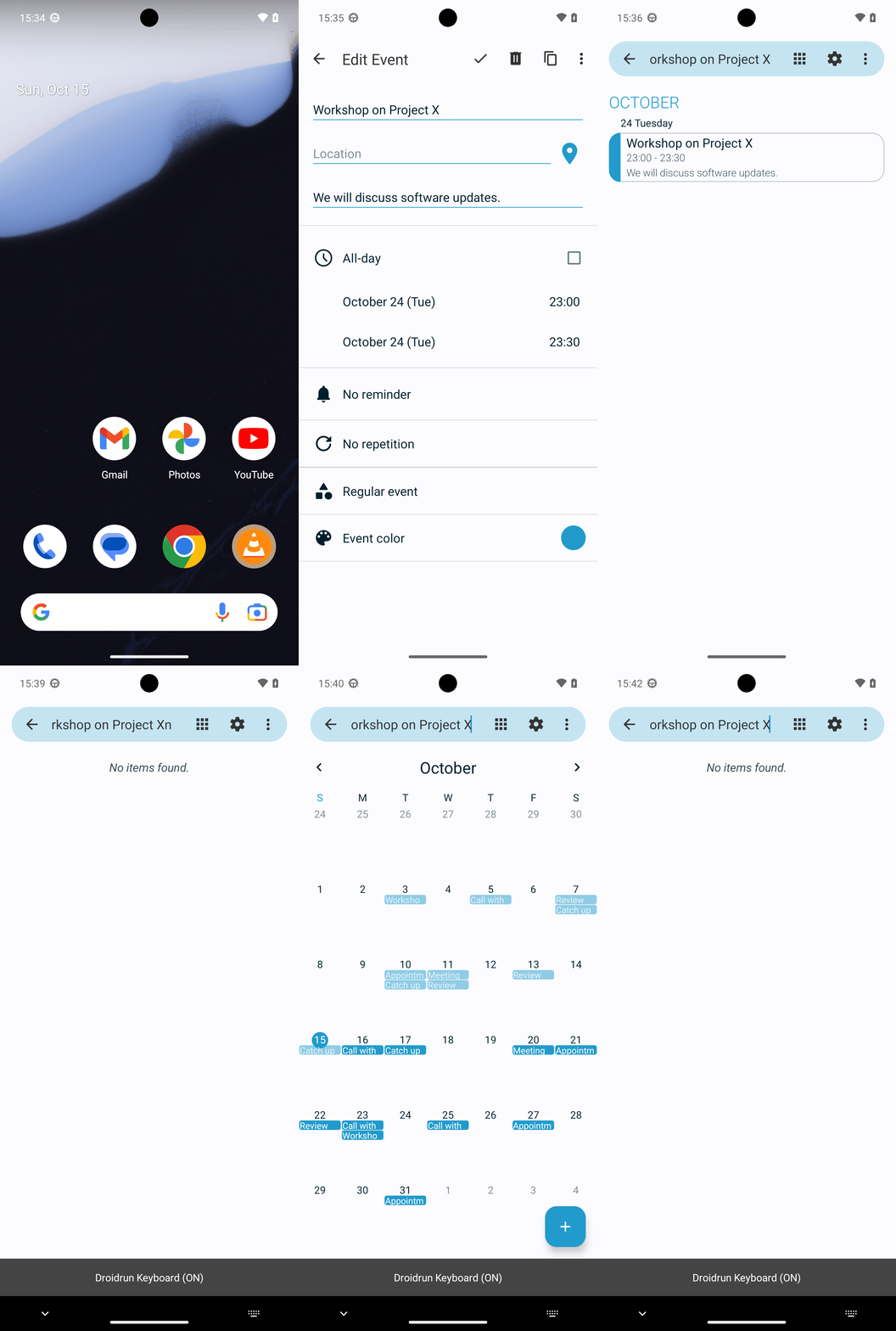
Deleted the calendar event titled "Workshop on Project X" scheduled for 2023-10-24 at 23:00 in Simple Calendar Pro and verified its removal via search (No items found).
complete_goal(message="Deleted the calendar event titled "Workshop on Project X" scheduled for 2023-10-24 at 23:00 in Simple Calendar Pro and verified its removal via search (No items found).")
Goal: In Simple Calendar Pro, delete the calendar event on 2023-10-24 at 23h with the title 'Workshop on Project X'
user: None
The current subgoal explicitly states to "Open the app 'Simple Calendar Pro' using the open_app action." This requires the `open_app` action with the `text` parameter set to "Simple Calendar Pro".
open_app(text="Simple Calendar Pro")
Opening the app "Simple Calendar Pro".
Opening the app "Simple Calendar Pro".
The current subgoal is to "Tap the Search field at the top and type: Workshop on Project X." 1. **Atomic Action:** The action required is `type`. 2. **Target/Location:** The target is the "Search field at the top". Based on the provided UI elements, element 5 is an `EditText` with the text "Search" and is located at the top. 3. **Parameters:** The `index` for the `type` action will be 5, and the `text` to type will be "Workshop on Project X".
type(text="Workshop on Project X"index=5)
Typing "Workshop on Project X" into the search field (element 5).
Typing "Workshop on Project X" into the search field (element 5).
The current subgoal requires tapping the search result item "Workshop on Project X". I need to find the UI element corresponding to this text and perform a click action on it. Based on the provided UI elements, element 62 has the text "Workshop on Project X" and is a TextView within an event item holder, which is a search result.
click(index=62)
Tapping the search result item "Workshop on Project X" to open its details.
Tapping the search result item "Workshop on Project X" to open its details.
The current subgoal is to "Tap the Delete button at the top." I need to find the "Delete" button in the provided UI elements and perform a click action on it. Element 6 is a Button with the text "Delete".
click(index=6)
Tapping the Delete button.
Tapping the Delete button.
The current subgoal is to "Tap “Yes” on the confirmation dialog to delete the event." I need to find the "Yes" button in the provided UI elements and perform a click action on it. Based on the provided UI elements, the "Yes" button is element 5.
click(index=5)
Tapping the "Yes" button on the confirmation dialog.
Tapping the "Yes" button on the confirmation dialog.
The current subgoal is to "Tap the “Workshop on Project X” result to open its details and verify existence." The UI shows "Workshop on Project X" as a clickable element at index 62. I need to perform a click action on this element.
click(index=62)
Tapping the "Workshop on Project X" search result to open its details.
Tapping the "Workshop on Project X" search result to open its details.
The current subgoal is to "Tap the event item holder (not just the title) in the search results to open 'Workshop on Project X'". I need to find the element corresponding to the "event item holder". Element 61 is "ViewGroup: com.simplemobiletools.calendar.pro:id/event_item_holder, event_item_holder - (42, 479, 1038, 656)". This is the correct element to tap.
click(index=61)
Tapping the event item holder for "Workshop on Project X".
Tapping the event item holder for "Workshop on Project X".
The current subgoal requires me to tap the search field, clear its text, and then retype "Workshop on Project X" to refresh the results. 1. **Tap the search field:** The search field is identified as element 5, an EditText with the text "Workshop on Project X". I will use `click(5)`. 2. **Clear the text:** There is no explicit "clear text" atomic action. However, when an input field is focused and new text is typed, it typically overwrites the existing text. 3. **Retype: Workshop on Project X:** I will use `type("Workshop on Project X", 5)` to re-enter the search term. This should also trigger a refresh of the search results.type(text="Workshop on Project X"index=5)
Typing "Workshop on Project X" into the search field (element 5) to refresh the search results. This action implicitly handles tapping the search field and overwriting its current content.
Typing "Workshop on Project X" into the search field (element 5) to refresh the search results. This action implicitly handles tapping the search field and overwriting its current content.
The current subgoal is to "Tap the search icon (top left of the search field) to trigger/refresh the results list." Based on the provided UI elements, element 4 is an ImageView with the resource ID "com.simplemobiletools.calendar.pro:id/top_toolbar_search_icon" and is located at (42, 149, 147, 275), which is to the left of the search EditText (element 5). This matches the description of the search icon. Therefore, the atomic action required is a `click` on element 4.
click(index=4)
Tapping the search icon (element 4) to trigger/refresh the results list.
Tapping the search icon (element 4) to trigger/refresh the results list.
The current subgoal is to "Tap the Search field and type: Workshop on Project X." I need to identify the search field element and then use the `type` action. Element 5 is an EditText with the text "Search", which is the target search field. The text to type is "Workshop on Project X".
type(text="Workshop on Project X"index=5)
Typing "Workshop on Project X" into the search field (element 5).
Typing "Workshop on Project X" into the search field (element 5).
Deleted the calendar event titled "Workshop on Project X" scheduled for 2023-10-24 at 23:00 in Simple Calendar Pro and verified its removal via search (No items found).
complete_goal(message="Deleted the calendar event titled "Workshop on Project X" scheduled for 2023-10-24 at 23:00 in Simple Calendar Pro and verified its removal via search (No items found).")