Expense Add Multiple From Gallery
Goal: Add the expenses from expenses.jpg in Simple Gallery Pro to pro expense.
Goal: Add the expenses from expenses.jpg in Simple Gallery Pro to pro expense.
user: None
The current subgoal explicitly states to "Use open_app to open “Simple Gallery Pro”". This directly maps to the `open_app` atomic action. The parameter for this action is the app name, which is "Simple Gallery Pro".
open_app(text="Simple Gallery Pro")
Opening the "Simple Gallery Pro" app as specified in the current subgoal.
Opening the "Simple Gallery Pro" app as specified in the current subgoal.
The current subgoal explicitly states "Use the Navigate up/back action to exit Settings". In the provided UI elements, there is an `ImageButton` with the text "Navigate up" and index 4. This directly corresponds to the required action.
click(index=4)
Clicking the "Navigate up" button to exit the current screen (Settings).
Clicking the "Navigate up" button to exit the current screen (Settings).
The current subgoal explicitly states "Open 'Simple Gallery Pro'". This directly maps to the `open_app` atomic action with the text parameter set to "Simple Gallery Pro".
open_app(text="Simple Gallery Pro")
Opening the "Simple Gallery Pro" app as specified in the current subgoal.
Opening the "Simple Gallery Pro" app as specified in the current subgoal.
The current subgoal requires two actions: first, tapping the search field, and then typing "expenses.jpg" into it. 1. **Action 1: Tap the search field.** - Atomic action: `click` - Target: The search field, identified as `5. EditText: "com.simplemobiletools.gallery.pro:id/top_toolbar_search", "Search folders"`. - Parameter: `index: 5` 2. **Action 2: Search for "expenses.jpg".** - Atomic action: `type` - Target: The search field, identified as `5. EditText: "com.simplemobiletools.gallery.pro:id/top_toolbar_search", "Search folders"`. - Parameters: `text: "expenses.jpg"`, `index: 5` I will perform the click action first to activate the search field, then the type action.
click(index=5)
Tapping the search field labeled "Search folders" to activate it.
Tapping the search field labeled "Search folders" to activate it.
The current subgoal is to "Open the DCIM folder shown." I need to find the UI element corresponding to "DCIM" and click it. Based on the provided UI elements, element 11 has the text "DCIM". This element is part of element 10, which is a `RelativeLayout` representing the folder holder. Therefore, clicking element 10 will open the DCIM folder.
click(index=10)
Clicking the DCIM folder to open it.
Clicking the DCIM folder to open it.
The current subgoal is to "Tap 'Toggle filename visibility' to show filenames." I need to find the element with the text "Toggle filename visibility" and click on it. Element 6 in the provided UI elements matches this description.
click(index=6)
Tapping the "Toggle filename visibility" button to show filenames.
Tapping the "Toggle filename visibility" button to show filenames.
The current subgoal is to tap the "expenses.jpg" item. I need to find the element with the text "expenses.jpg" and click on it. Element 21, a TextView, has the text "expenses.jpg".
click(index=21)
Tapping the "expenses.jpg" item in the grid to open it.
Tapping the "expenses.jpg" item in the grid to open it.
The current subgoal explicitly states "Open the “Pro Expense” app." This directly maps to the `open_app` atomic action. The target app name is "Pro Expense".
open_app(text="Pro Expense")
Opening the "Pro Expense" app as specified in the current subgoal.
Opening the "Pro Expense" app as specified in the current subgoal.
The current subgoal is to "Tap the + (Add) button". I need to locate the element that corresponds to an "Add" button. Based on the UI elements, element 41, `ImageButton: "com.arduia.expense:id/fb_main_add", "fb_main_add" - (891, 2106, 1038, 2253)`, is clearly an add button, indicated by its resource ID `fb_main_add` and the visual representation of a plus sign in the screenshot.
click(index=41)
Tapping the floating action button with a plus sign to add a new expense.
Tapping the floating action button with a plus sign to add a new expense.
The current subgoal requires typing "Dress" into the "Name" field. The "Name" field is currently focused, and its index is 12. Therefore, the action is to type "Dress" into the element with index 12.
type(text="Dress"index=12)
Typing "Dress" into the "Name" input field.
Typing "Dress" into the "Name" input field.
The current subgoal is to "Tap Amount field and type 436.35". I need to locate the "Amount" field in the UI elements and then use the `type` action to input the specified amount. The "Amount" field is identified by index 12.
type(text="436.35"index=12)
Typing "436.35" into the "Amount" input field.
Typing "436.35" into the "Amount" input field.
The current subgoal requires swiping the category row left until "Clothes" appears. The category row is identified as `RecyclerView: "com.arduia.expense:id/rv_category", "rv_category" - (21, 762, 1059, 882)`. To swipe left, I need to specify a starting coordinate on the right side of this element and an ending coordinate on the left side. I will use the middle of the y-axis (822) and coordinates within the x-axis bounds of the RecyclerView.
swipe(coordinate=[900, 822]coordinate2=[100, 822])
Swiping the category row to the left to reveal more categories.
Swiping the category row to the left to reveal more categories.
The current subgoal states to "Tap “Clothes” in the category row". I need to find the element corresponding to "Clothes" and perform a click action on it. Based on the provided UI elements, "Clothes" is element 20.
click(index=20)
Tapping "Clothes" in the category row.
Tapping "Clothes" in the category row.
The current subgoal requires three actions: 1. Tap the "Note" field. This corresponds to `EditText: "com.arduia.expense:id/edt_note", "Note" - (63, 938, 1017, 1187)` which has index 25. 2. Type "Paid by card" into the "Note" field. 3. Tap the "SAVE" button. This corresponds to `Button: "com.arduia.expense:id/btn_save", "SAVE" - (63, 1229, 844, 1376)` which has index 26. I will perform these actions sequentially. The first action is to tap the Note field.
click(index=25)
Tapping the "Note" input field.
Tapping the "Note" input field.
The subgoal requires two actions: first, typing "Paid by card" into the "Note" field, and second, tapping the "SAVE" button. The "Note" field is identified by index 26, and the "SAVE" button is identified by index 27.
type(text="Paid by card"index=26)
Typing "Paid by card" into the "Note" input field.
Typing "Paid by card" into the "Note" input field.
The current subgoal is to "Tap SAVE to save the 'Dress' expense." I need to find the element with the text "SAVE" and perform a click action on it. Element 26 is a Button with the text "SAVE".
click(index=26)
Tapping the "SAVE" button to save the current expense.
Tapping the "SAVE" button to save the current expense.
The current subgoal is to tap the "+ (Add) button". I will look for a clickable element that visually represents a plus button or has "add" in its description. Element 41, an ImageButton with resource ID `com.arduia.expense:id/fb_main_add` and bounds `(891, 2106, 1038, 2253)`, is clearly the floating action button with a plus sign, which is typically used for adding new entries.
click(index=41)
Tapping the floating action button with a plus sign to add a new expense.
Tapping the floating action button with a plus sign to add a new expense.
The current subgoal is to "Type “Furnishing” in the Name field". The "Name" field is an EditText element with index 12. I need to use the `type` action with the text "Furnishing" and the index 12.
type(text="Furnishing"index=12)
Typing "Furnishing" into the "Name" input field.
Typing "Furnishing" into the "Name" input field.
The current subgoal is to "Tap Amount and type 350.07". The first action is to "Tap Amount". I need to find the UI element with the text "Amount" and click it. Based on the provided UI elements, element 12 is an EditText with the text "Amount".
click(index=12)
Tapping the "Amount" input field.
Tapping the "Amount" input field.
The current subgoal is "Type 350.07 into Amount". The action is to `type` text. The target is the "Amount" input field, which has index 13. The text to be typed is "350.07".
type(text="350.07"index=13)
Typing "350.07" into the "Amount" input field.
Typing "350.07" into the "Amount" input field.
The current subgoal is to "Tap the “Housing” category". I need to find the element that says "Housing" and perform a click action on it. Based on the provided UI elements, element 20 is a TextView with the text "Housing".
click(index=20)
Tapping the "Housing" category.
Tapping the "Housing" category.
The current subgoal is to "Tap the Note field and type “A need”". I need to find the "Note" field in the UI elements and then perform a click action on it, followed by a type action to input "A need". Element 25 is an EditText with the text "Note" and resource ID "com.arduia.expense:id/edt_note", which is the target.
click(index=25)
Tapping the "Note" input field.
Tapping the "Note" input field.
The current subgoal is to "Type 'A need' in the Note field". The 'Note' field is identified by index 26 in the provided UI elements. The action required is `type`.
type(text="A need"index=26)
Typing "A need" into the 'Note' field.
Typing "A need" into the 'Note' field.
The current subgoal explicitly states "Tap SAVE". I need to locate the "SAVE" button in the provided UI elements and perform a click action on it. Element 26, "Button: com.arduia.expense:id/btn_save, "SAVE"", is the correct target.
click(index=26)
Tapping the "SAVE" button to save the current expense entry.
Tapping the "SAVE" button to save the current expense entry.
The current subgoal is to tap the '+' (Add) button. Based on the UI elements, element 41, an ImageButton with resource ID "com.arduia.expense:id/fb_main_add", is the add button. I will perform a click action on this element.
click(index=41)
Tapping the '+' (Add) button to add a new expense.
Tapping the '+' (Add) button to add a new expense.
The current subgoal is to type "Dental Care" in the "Name" field. I need to use the `type` action. The "Name" field is identified as element 12, `EditText: "com.arduia.expense:id/edt_name", "Name"`.
type(text="Dental Care"index=12)
Typing "Dental Care" into the "Name" field.
Typing "Dental Care" into the "Name" field.
The current subgoal is to "Tap the Amount field and type 39.54." 1. **Atomic action:** The subgoal requires two actions: "tap" and "type". Since the `type` action automatically focuses the input field, I can directly use `type`. 2. **Target element:** The target element is the "Amount field". 3. **Parameters:** The text to type is "39.54". The index of the "Amount" field is 12, as identified from the device state: `12. EditText: "com.arduia.expense:id/edt_amount", "Amount" - (63, 565, 1017, 720)`.
type(text="39.54"index=12)
Tapping the "Amount" field and typing "39.54".
Tapping the "Amount" field and typing "39.54".
The subgoal requires swiping the category row left. The category row is identified as `RecyclerView: "com.arduia.expense:id/rv_category"` (index 14) with bounds (21, 762, 1059, 882). I will perform a swipe action from right to left within these bounds.
swipe(coordinate=[900, 822]coordinate2=[100, 822])
Swiping the category row left to reveal more categories.
Swiping the category row left to reveal more categories.
The current subgoal is to "Tap “Health Care” in the category row." I need to find the element with the text "Health Care" and click on it. Based on the provided UI elements, element 24 is a TextView with the text "Health Care".
click(index=24)
Tapping "Health Care" in the category row.
Tapping "Health Care" in the category row.
The current subgoal is to "Tap the Note field and type “A need”". I need to locate the "Note" field in the provided UI elements and then use the `type` action to input the specified text. Element 25 is `EditText: "com.arduia.expense:id/edt_note", "Note"`, which is the correct target.
type(text="A need"index=25)
Tapping the "Note" field and typing "A need".
Tapping the "Note" field and typing "A need".
The current subgoal is to "Tap SAVE to add the “Dental Care” expense." I need to find the "SAVE" button in the provided UI elements and click it. Element 26 is a button with the text "SAVE".
click(index=26)
Tapping the "SAVE" button to add the expense.
Tapping the "SAVE" button to add the expense.
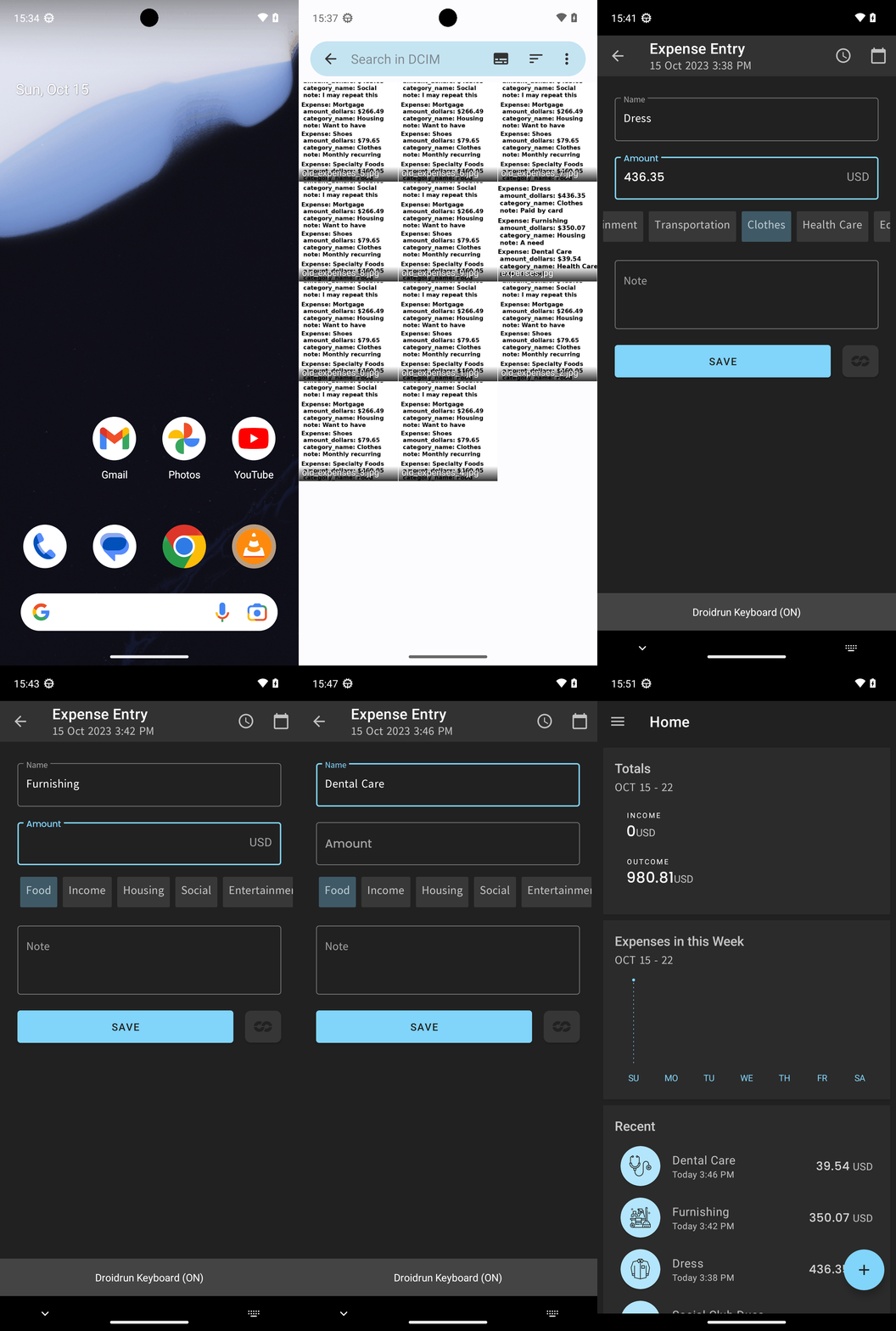
Added all expenses from expenses.jpg into Pro Expense and verified they appear correctly: Dress (436.35 USD, Clothes, “Paid by card”), Furnishing (350.07 USD, Housing, “A need”), and Dental Care (39.54 USD, Health Care, “A need”).
complete_goal(message="Added all expenses from expenses.jpg into Pro Expense and verified they appear correctly: Dress (436.35 USD, Clothes, “Paid by card”), Furnishing (350.07 USD, Housing, “A need”), and Dental Care (39.54 USD, Health Care, “A need”).")
Goal: Add the expenses from expenses.jpg in Simple Gallery Pro to pro expense.
user: None
The current subgoal explicitly states to "Use open_app to open “Simple Gallery Pro”". This directly maps to the `open_app` atomic action. The parameter for this action is the app name, which is "Simple Gallery Pro".
open_app(text="Simple Gallery Pro")
Opening the "Simple Gallery Pro" app as specified in the current subgoal.
Opening the "Simple Gallery Pro" app as specified in the current subgoal.
The current subgoal explicitly states "Use the Navigate up/back action to exit Settings". In the provided UI elements, there is an `ImageButton` with the text "Navigate up" and index 4. This directly corresponds to the required action.
click(index=4)
Clicking the "Navigate up" button to exit the current screen (Settings).
Clicking the "Navigate up" button to exit the current screen (Settings).
The current subgoal explicitly states "Open 'Simple Gallery Pro'". This directly maps to the `open_app` atomic action with the text parameter set to "Simple Gallery Pro".
open_app(text="Simple Gallery Pro")
Opening the "Simple Gallery Pro" app as specified in the current subgoal.
Opening the "Simple Gallery Pro" app as specified in the current subgoal.
The current subgoal requires two actions: first, tapping the search field, and then typing "expenses.jpg" into it. 1. **Action 1: Tap the search field.** - Atomic action: `click` - Target: The search field, identified as `5. EditText: "com.simplemobiletools.gallery.pro:id/top_toolbar_search", "Search folders"`. - Parameter: `index: 5` 2. **Action 2: Search for "expenses.jpg".** - Atomic action: `type` - Target: The search field, identified as `5. EditText: "com.simplemobiletools.gallery.pro:id/top_toolbar_search", "Search folders"`. - Parameters: `text: "expenses.jpg"`, `index: 5` I will perform the click action first to activate the search field, then the type action.
click(index=5)
Tapping the search field labeled "Search folders" to activate it.
Tapping the search field labeled "Search folders" to activate it.
The current subgoal is to "Open the DCIM folder shown." I need to find the UI element corresponding to "DCIM" and click it. Based on the provided UI elements, element 11 has the text "DCIM". This element is part of element 10, which is a `RelativeLayout` representing the folder holder. Therefore, clicking element 10 will open the DCIM folder.
click(index=10)
Clicking the DCIM folder to open it.
Clicking the DCIM folder to open it.
The current subgoal is to "Tap 'Toggle filename visibility' to show filenames." I need to find the element with the text "Toggle filename visibility" and click on it. Element 6 in the provided UI elements matches this description.
click(index=6)
Tapping the "Toggle filename visibility" button to show filenames.
Tapping the "Toggle filename visibility" button to show filenames.
The current subgoal is to tap the "expenses.jpg" item. I need to find the element with the text "expenses.jpg" and click on it. Element 21, a TextView, has the text "expenses.jpg".
click(index=21)
Tapping the "expenses.jpg" item in the grid to open it.
Tapping the "expenses.jpg" item in the grid to open it.
The current subgoal explicitly states "Open the “Pro Expense” app." This directly maps to the `open_app` atomic action. The target app name is "Pro Expense".
open_app(text="Pro Expense")
Opening the "Pro Expense" app as specified in the current subgoal.
Opening the "Pro Expense" app as specified in the current subgoal.
The current subgoal is to "Tap the + (Add) button". I need to locate the element that corresponds to an "Add" button. Based on the UI elements, element 41, `ImageButton: "com.arduia.expense:id/fb_main_add", "fb_main_add" - (891, 2106, 1038, 2253)`, is clearly an add button, indicated by its resource ID `fb_main_add` and the visual representation of a plus sign in the screenshot.
click(index=41)
Tapping the floating action button with a plus sign to add a new expense.
Tapping the floating action button with a plus sign to add a new expense.
The current subgoal requires typing "Dress" into the "Name" field. The "Name" field is currently focused, and its index is 12. Therefore, the action is to type "Dress" into the element with index 12.
type(text="Dress"index=12)
Typing "Dress" into the "Name" input field.
Typing "Dress" into the "Name" input field.
The current subgoal is to "Tap Amount field and type 436.35". I need to locate the "Amount" field in the UI elements and then use the `type` action to input the specified amount. The "Amount" field is identified by index 12.
type(text="436.35"index=12)
Typing "436.35" into the "Amount" input field.
Typing "436.35" into the "Amount" input field.
The current subgoal requires swiping the category row left until "Clothes" appears. The category row is identified as `RecyclerView: "com.arduia.expense:id/rv_category", "rv_category" - (21, 762, 1059, 882)`. To swipe left, I need to specify a starting coordinate on the right side of this element and an ending coordinate on the left side. I will use the middle of the y-axis (822) and coordinates within the x-axis bounds of the RecyclerView.
swipe(coordinate=[900, 822]coordinate2=[100, 822])
Swiping the category row to the left to reveal more categories.
Swiping the category row to the left to reveal more categories.
The current subgoal states to "Tap “Clothes” in the category row". I need to find the element corresponding to "Clothes" and perform a click action on it. Based on the provided UI elements, "Clothes" is element 20.
click(index=20)
Tapping "Clothes" in the category row.
Tapping "Clothes" in the category row.
The current subgoal requires three actions: 1. Tap the "Note" field. This corresponds to `EditText: "com.arduia.expense:id/edt_note", "Note" - (63, 938, 1017, 1187)` which has index 25. 2. Type "Paid by card" into the "Note" field. 3. Tap the "SAVE" button. This corresponds to `Button: "com.arduia.expense:id/btn_save", "SAVE" - (63, 1229, 844, 1376)` which has index 26. I will perform these actions sequentially. The first action is to tap the Note field.
click(index=25)
Tapping the "Note" input field.
Tapping the "Note" input field.
The subgoal requires two actions: first, typing "Paid by card" into the "Note" field, and second, tapping the "SAVE" button. The "Note" field is identified by index 26, and the "SAVE" button is identified by index 27.
type(text="Paid by card"index=26)
Typing "Paid by card" into the "Note" input field.
Typing "Paid by card" into the "Note" input field.
The current subgoal is to "Tap SAVE to save the 'Dress' expense." I need to find the element with the text "SAVE" and perform a click action on it. Element 26 is a Button with the text "SAVE".
click(index=26)
Tapping the "SAVE" button to save the current expense.
Tapping the "SAVE" button to save the current expense.
The current subgoal is to tap the "+ (Add) button". I will look for a clickable element that visually represents a plus button or has "add" in its description. Element 41, an ImageButton with resource ID `com.arduia.expense:id/fb_main_add` and bounds `(891, 2106, 1038, 2253)`, is clearly the floating action button with a plus sign, which is typically used for adding new entries.
click(index=41)
Tapping the floating action button with a plus sign to add a new expense.
Tapping the floating action button with a plus sign to add a new expense.
The current subgoal is to "Type “Furnishing” in the Name field". The "Name" field is an EditText element with index 12. I need to use the `type` action with the text "Furnishing" and the index 12.
type(text="Furnishing"index=12)
Typing "Furnishing" into the "Name" input field.
Typing "Furnishing" into the "Name" input field.
The current subgoal is to "Tap Amount and type 350.07". The first action is to "Tap Amount". I need to find the UI element with the text "Amount" and click it. Based on the provided UI elements, element 12 is an EditText with the text "Amount".
click(index=12)
Tapping the "Amount" input field.
Tapping the "Amount" input field.
The current subgoal is "Type 350.07 into Amount". The action is to `type` text. The target is the "Amount" input field, which has index 13. The text to be typed is "350.07".
type(text="350.07"index=13)
Typing "350.07" into the "Amount" input field.
Typing "350.07" into the "Amount" input field.
The current subgoal is to "Tap the “Housing” category". I need to find the element that says "Housing" and perform a click action on it. Based on the provided UI elements, element 20 is a TextView with the text "Housing".
click(index=20)
Tapping the "Housing" category.
Tapping the "Housing" category.
The current subgoal is to "Tap the Note field and type “A need”". I need to find the "Note" field in the UI elements and then perform a click action on it, followed by a type action to input "A need". Element 25 is an EditText with the text "Note" and resource ID "com.arduia.expense:id/edt_note", which is the target.
click(index=25)
Tapping the "Note" input field.
Tapping the "Note" input field.
The current subgoal is to "Type 'A need' in the Note field". The 'Note' field is identified by index 26 in the provided UI elements. The action required is `type`.
type(text="A need"index=26)
Typing "A need" into the 'Note' field.
Typing "A need" into the 'Note' field.
The current subgoal explicitly states "Tap SAVE". I need to locate the "SAVE" button in the provided UI elements and perform a click action on it. Element 26, "Button: com.arduia.expense:id/btn_save, "SAVE"", is the correct target.
click(index=26)
Tapping the "SAVE" button to save the current expense entry.
Tapping the "SAVE" button to save the current expense entry.
The current subgoal is to tap the '+' (Add) button. Based on the UI elements, element 41, an ImageButton with resource ID "com.arduia.expense:id/fb_main_add", is the add button. I will perform a click action on this element.
click(index=41)
Tapping the '+' (Add) button to add a new expense.
Tapping the '+' (Add) button to add a new expense.
The current subgoal is to type "Dental Care" in the "Name" field. I need to use the `type` action. The "Name" field is identified as element 12, `EditText: "com.arduia.expense:id/edt_name", "Name"`.
type(text="Dental Care"index=12)
Typing "Dental Care" into the "Name" field.
Typing "Dental Care" into the "Name" field.
The current subgoal is to "Tap the Amount field and type 39.54." 1. **Atomic action:** The subgoal requires two actions: "tap" and "type". Since the `type` action automatically focuses the input field, I can directly use `type`. 2. **Target element:** The target element is the "Amount field". 3. **Parameters:** The text to type is "39.54". The index of the "Amount" field is 12, as identified from the device state: `12. EditText: "com.arduia.expense:id/edt_amount", "Amount" - (63, 565, 1017, 720)`.
type(text="39.54"index=12)
Tapping the "Amount" field and typing "39.54".
Tapping the "Amount" field and typing "39.54".
The subgoal requires swiping the category row left. The category row is identified as `RecyclerView: "com.arduia.expense:id/rv_category"` (index 14) with bounds (21, 762, 1059, 882). I will perform a swipe action from right to left within these bounds.
swipe(coordinate=[900, 822]coordinate2=[100, 822])
Swiping the category row left to reveal more categories.
Swiping the category row left to reveal more categories.
The current subgoal is to "Tap “Health Care” in the category row." I need to find the element with the text "Health Care" and click on it. Based on the provided UI elements, element 24 is a TextView with the text "Health Care".
click(index=24)
Tapping "Health Care" in the category row.
Tapping "Health Care" in the category row.
The current subgoal is to "Tap the Note field and type “A need”". I need to locate the "Note" field in the provided UI elements and then use the `type` action to input the specified text. Element 25 is `EditText: "com.arduia.expense:id/edt_note", "Note"`, which is the correct target.
type(text="A need"index=25)
Tapping the "Note" field and typing "A need".
Tapping the "Note" field and typing "A need".
The current subgoal is to "Tap SAVE to add the “Dental Care” expense." I need to find the "SAVE" button in the provided UI elements and click it. Element 26 is a button with the text "SAVE".
click(index=26)
Tapping the "SAVE" button to add the expense.
Tapping the "SAVE" button to add the expense.
Added all expenses from expenses.jpg into Pro Expense and verified they appear correctly: Dress (436.35 USD, Clothes, “Paid by card”), Furnishing (350.07 USD, Housing, “A need”), and Dental Care (39.54 USD, Health Care, “A need”).
complete_goal(message="Added all expenses from expenses.jpg into Pro Expense and verified they appear correctly: Dress (436.35 USD, Clothes, “Paid by card”), Furnishing (350.07 USD, Housing, “A need”), and Dental Care (39.54 USD, Health Care, “A need”).")